The Webflow Designer is great, and is arguably one of the most important tools in our stack, but there's one thing it's currently missing: it doesn't have a native table element. This means most people either reach for a grid of divs, paste in a static screenshot, or end up wrestling with a custom embed they wrote from scratch.
None of those are great options. So we built something better, and we're making it available for free.
Why we built it
At Lightning UX, we work on a lot of Webflow projects across different industries: SaaS, AI, professional services, finance, health. Many of those projects need comparison tables, pricing breakdowns, spec sheets, or data-heavy content. Every single time, there was no clean, quick way to produce a well-structured HTML table that looked good, was accessible, and didn't require writing raw code by hand.
Div-based tables are a common workaround, but they're semantically incorrect. Screen readers can't interpret them as tables. Search engines treat them as generic layout blocks. They're harder to maintain and tend to break in unpredictable ways when content changes.
We wanted a tool that would produce real, semantic HTML tables, the kind that actually works for everyone, not just sighted users on desktop. Something with enough visual controls to make it look great without touching a line of code, and something that outputs clean embed-ready HTML you can drop straight into Webflow.
What it does
The Webflow HTML Table Builder is a visual, browser-based tool that lets you design a data table and export production-ready HTML in seconds. Here's what you get:
Visual size picker
Hover over a grid to set your table dimensions. For larger tables, you can type exact column and row counts directly.
 The size picker lets you build your table visually
Typography controls
Set the font family (system sans-serif, inherited from your page, serif, or monospace), font size, and body text colour. Choosing "inherit" means the table will pick up your Webflow site's existing font stack automatically.
Border controls
Configure border width, style (solid, dashed, or dotted), colour, and corner radius. Set the radius to 0 for a sharp-edged table, or push it up for a rounded card-style look.
Cell padding
Control vertical and horizontal padding independently. Generous padding makes tables feel spacious and readable; tighter padding works better for dense data.
Header styling
Set a distinct background colour and text colour for the header row, and toggle bold header text on or off. The header is output as a proper <thead> with <th scope="col"> elements — correct semantics, not just a bold first row.
Zebra striping and row backgrounds
Enable alternating row colours with your chosen stripe colour, or override individual rows with a custom background when you need to highlight specific data points.
 Easily control zebra striping, plus you can fully override rows
Per-column controls
Set text alignment (left, centre, right) and optional background colour per column. Useful for highlighting a "recommended" pricing column, for example.
Inline cell editing
Click any cell directly in the preview canvas to type your content. Hit Enter to confirm. No switching between a form and a preview. What you see is what you get.
Import & re-edit
Already generated a table with this tool? Paste the embed code back into the Import panel and it'll reverse-engineer your settings so you can keep editing. Colours, borders, padding, content, all recovered from the inline styles.
One-click copy
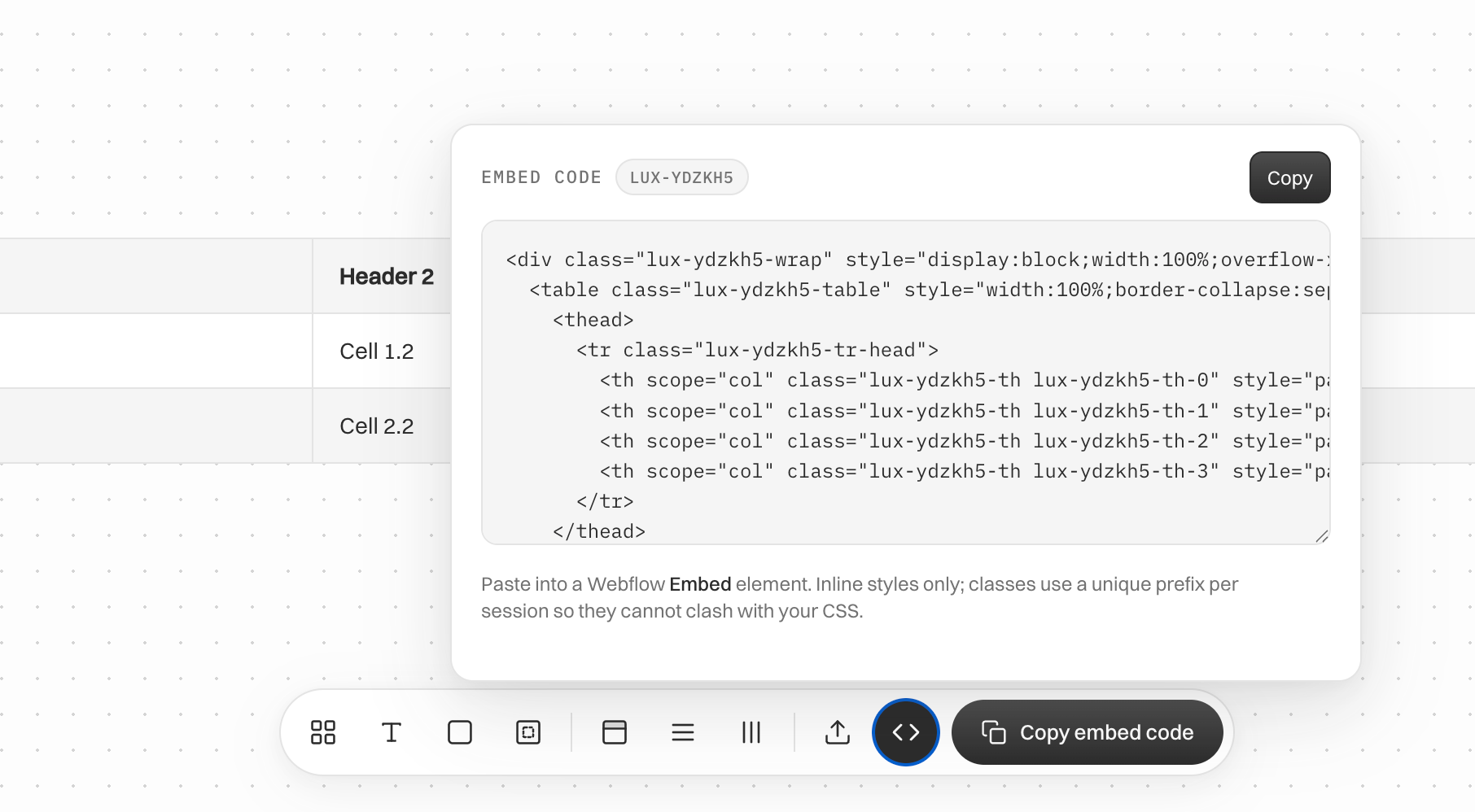
Hit "Copy embed code" and the output is on your clipboard, ready to paste into a Webflow Embed component. All styles are inline, and class names use a unique per-session prefix so they can never clash with your existing CSS.
Why semantic HTML tables beat div grids
It's worth taking a moment on this, because the "just use divs" pattern is genuinely widespread on many sites, and it's a real problem.
An HTML <table> element is not just a layout tool. It communicates structure and meaning. When a screen reader encounters a proper table, it can announce the number of rows and columns, associate header cells with their data cells, and allow the user to navigate by row and column. A grid of divs does none of this. To a screen reader, it's just a series of boxes. There's no way to tell that row 3, column 2 relates to the header in row 1, column 2.
For accessibility compliance - particularly WCAG 2.1 AA - which many organisations are now legally required to meet, using the correct HTML element isn't optional. It's the difference between a table that works for everyone and one that excludes a meaningful percentage of your audience.
There are practical benefits beyond accessibility too. Semantic tables are easier to maintain: adding or removing a row doesn't require restructuring a complex grid layout. They respond better to user stylesheets and browser reading modes. And because the structure is explicit, content editors who come after you have a much easier time understanding and updating the data.
Search engines also understand <table> elements and can extract structured data from them in a way they can't from arbitrary div layouts. That's not a guaranteed ranking factor, but it contributes to the overall quality and interpretability of your page content.
In short: the right tool for tabular data is a table. Our builder makes producing one fast, visual, and painless.
Frequently asked questions
Does this only work with Webflow?
No. The output is plain HTML with inline styles. It'll work in any platform that lets you embed raw HTML. That includes Framer, Squarespace, Notion, WordPress, Ghost, Substack, and any custom-coded site. The "Webflow Table Builder" name reflects where we build most of our sites, but the tool isn't Webflow-specific at all.
Will the table styles clash with my Webflow site's CSS?
No. Every table generated by the tool is prefixed with a unique ID (e.g. lux-k7xm2q) that's randomly generated each session. All class names are scoped to that prefix, so there's no risk of conflict with your site's existing styles. Styles are also applied inline, giving them high specificity.
Can I re-edit a table after I've already embedded it?
Yes. Open the Import panel, paste in your existing embed code, and the tool will parse it back into editable state, recovering your dimensions, colours, border settings, padding, and cell content. This makes it easy to update a table weeks or months after you first built it, even if you no longer have the original settings.
Does the generated table work on mobile?
Yes. The table wrapper has overflow-x: auto applied, which means wide tables will scroll horizontally on small screens rather than breaking the layout. Each cell also has a min-width set to keep content readable. For very wide tables on mobile, horizontal scroll is the correct and expected behaviour.
Is there a limit on table size?
The visual size picker goes up to 12 columns × 10 rows. If you need something larger, you can type exact values directly. The tool supports up to 50 columns and 100 rows. In practice, very large tables in web content are usually better split into smaller, more digestible tables, but the option is there if you need it.
Use it for free
The tool is live on our site, free to use with no account required. Build your table, copy the embed code, and paste it into Webflow. That's it.
If you find it useful or have feature requests, we'd love to hear from you. And if you're working on a Webflow project that needs more than a table, whether that's a full site build, a design system, or ongoing design and development support, get in touch.