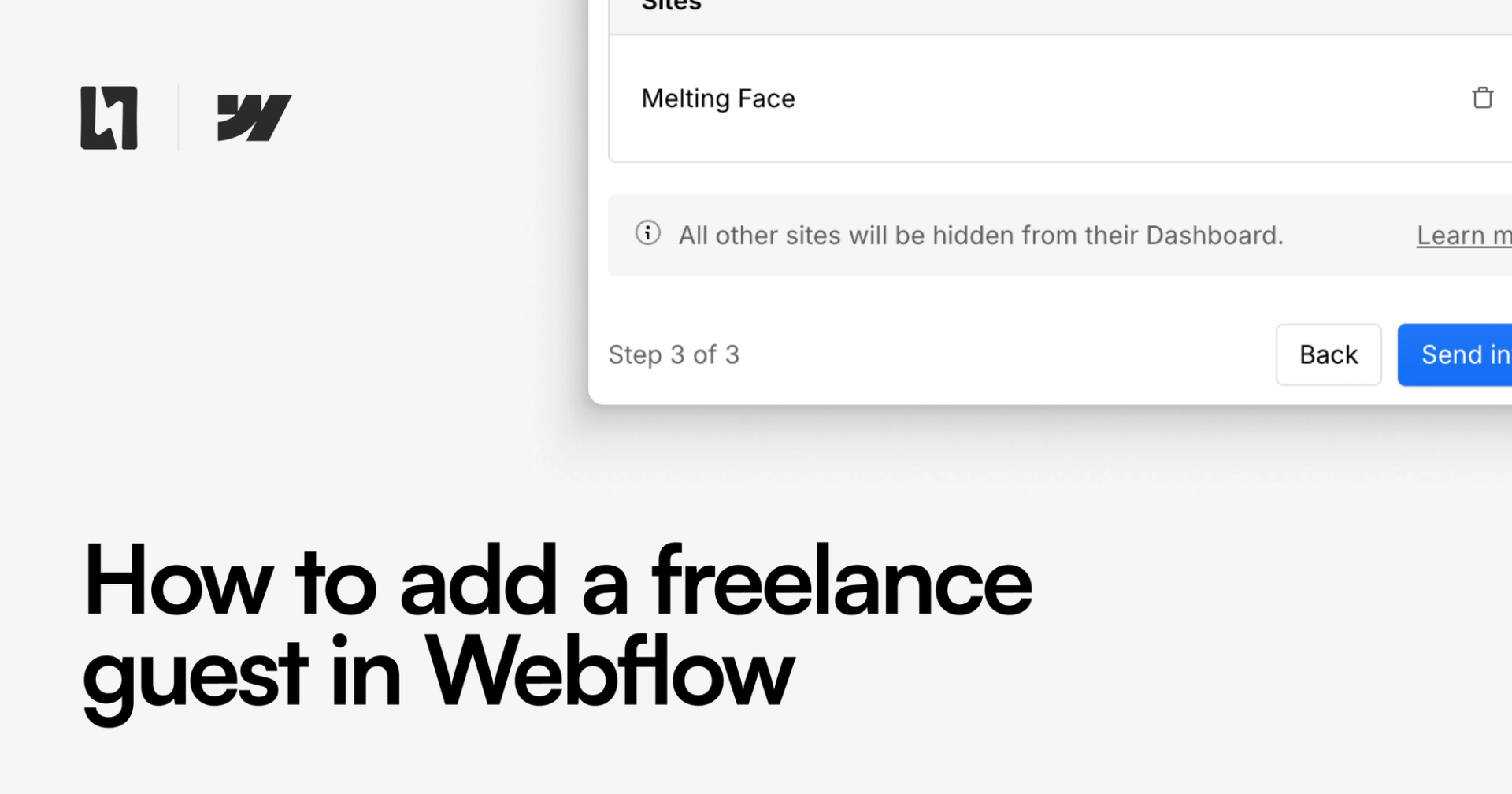
When working with an agency or freelancer on your Webflow site, you will need to invite them to your team in order to allow them access to your project. To do this, follow these steps:
1. Go to your Webflow dashboard
This is where you see all your sites, plus the left-hand sidebar for controlling your workspace.
 An example of the Webflow workspace and left sidebar
2. Open the Team tab
In the left sidebar, you'll see the 'Team' option. This is where you can control who has access to your projects, and what roles they have.
3. Add a guest
Adding a guest to your workspace is free up to a limit (at the time of writing it is two). Scroll down until you see the 'Agency or Freelancer guests' section.
 Agency or Freelancer guests section in Webflow
When you see this section, click 'Invite guest'.
4. Fill in the guest's information
In the pop-up, fill in the guest's information like their email, their role in your projects and if they're allowed to publish or invite additional guests to your workspace.
 Adding your guest's information
5. Select which sites they can access
When inviting a freelancer or agency guest, you can specifically set which sites you want them to be able to access in your workspace. You can allow access to all of them, or just select individual sites if some should stay private and secure.
 Choosing which sites a guest can access in Webflow
6. Review and invite
Once you've filled in their information and you're happy with the sites they can access, review the final info and click 'Send invite'.
 The review step of inviting a guest to your Webflow workspace
Once you click send, the freelancer or agency will get an email informing them they've been invited to your workspace, which they can accept or decline. Once they accept it, they'll be able to access the sites you specified and continue helping you build out your Webflow site.