Once your Webflow site is ready to go live, the final step is pointing your own domain at it so visitors see yourbrand.com instead of yourbrand.webflow.io.
The process is reasonably quick but involves a few moving parts: buying the domain, adding it in Webflow, updating DNS records with your domain registrar, and finally publishing.
This guide walks through the standard setup for a root domain like example.com, then covers how to handle a subdomain like app.example.com, and ends with answers to the questions that come up most often.
Before you start
You'll need three things in place:
- A Webflow site on a paid Site Plan. The free plan only publishes to the
.webflow.iostaging URL and won't let you connect a custom domain. - A domain you own, purchased from any registrar (GoDaddy, Namecheap, Google Domains, Cloudflare, 123 Reg, and so on). Webflow doesn't sell domains, so you buy this separately.
- Login access to that registrar's DNS settings. This is where you'll point the domain at Webflow's servers.
Adding a root domain (example.com)
This is the most common setup: you want both example.com and www.example.com to load your Webflow site.
1. Add the domain in Webflow
Open your site in the Webflow Designer, then go to Site settings > Publishing > Production. Under the Custom domains section, click Add custom domain.
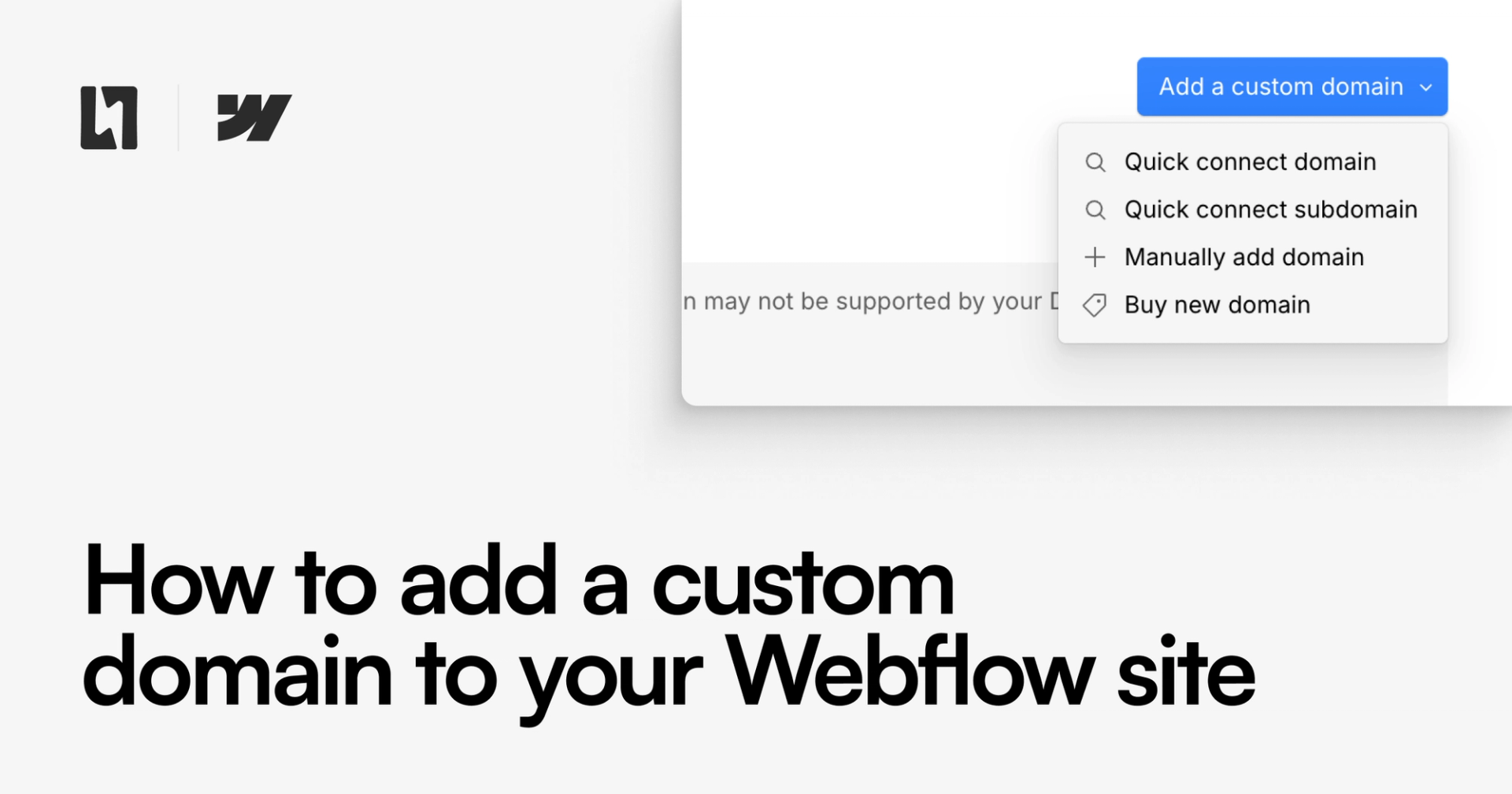
You'll have the option to add a domain via 'Quick Connect' which sends you through a more seamless third-party process (if your domain provider supports this) or to connect your domain manually. We'll assume you're connecting the domain manually, and use the example domains example.com in place of your domain.
Enter example.com and click Add domain. Webflow will then prompt you to also add the www version, click Yes, add www. You should now see both example.com and www.example.com listed.
Webflow will show a panel with the DNS records you need to add at your registrar. Keep this tab open, you'll need the values in the next step.
2. Update DNS records at your registrar
Log in to wherever you bought the domain and open its DNS settings (sometimes called "DNS management", "Advanced DNS", or "Zone editor"). You'll be adding two records:
- An A record on the root (
@) pointing to Webflow's IP addresses. Webflow currently provides four IPs. Add them all as separate A records on the same@host so the domain is resilient if one IP is unavailable. - A CNAME record on
wwwpointing toproxy-ssl.webflow.com.
The exact values are shown in your Webflow Publishing settings. Always copy them directly from there rather than from a guide, in case Webflow updates them in future.
Before adding the new records, delete any existing A, AAAA, or CNAME records for @ and www that point somewhere else (for example, leftover records from a previous host). Leaving conflicting records in place is the single most common cause of a domain not connecting properly.
3. Set the default domain and publish
Back in Webflow's Publishing settings, wait until both domains show a green "Connected" status. This usually takes a few minutes but can occasionally take up to 48 hours depending on your registrar's DNS propagation speed.
Once both are connected, set www.example.com as the default by clicking the star icon next to it. Webflow recommends using the www version as the canonical address because it's more flexible at the DNS level. The root domain will automatically redirect to the www version.
Finally, hit Publish in the top right of the Designer and tick both custom domains in the publish modal. Your site is now live on your own domain.
Adding a subdomain (subdomain.example.com)
Subdomains are useful when you want a separate site or app to live on something like blog.example.com, app.example.com, or marketing.example.com without affecting the main site at example.com.
1. Add the subdomain in Webflow
The process starts the same way. In Site settings > Publishing > Production, click Add custom domain and enter the full subdomain, for example app.example.com. Don't add the root version this time.
2. Add a CNAME and TXT record at your registrar
Subdomains use a single CNAME record rather than A records, along with a TXT record for one-time verification. In your registrar's DNS settings, add a new CNAME with:
- Host / Name:
app(just the subdomain part, not the full domain) - Value / Points to:
cdn.webflow.com - TTL: leave at the default, usually 3600 seconds (one hour)
Then add a TXT record with:
- Host / Name:
_webflow.app(replace theappwith whatever your subdomain is, for example it could be_webflow.shop) - Value / Points to: the one-time verification value (be sure to copy both the name of the value and the verification code, for example you should use
one-time-verification=VERIFICATION-CODErather than just the code on its own) - TTL: leave at the default, usually 3600 seconds (one hour)
Important: the root domain (example.com) is unaffected by this change. If you already have a different site running on example.com, it will keep working exactly as before. The CNAME only affects the app subdomain.
3. Connect and publish
Return to Webflow Publishing settings and wait for the subdomain to show as "Connected". Set it as your default domain (it'll be the only option), then publish. Your subdomain site is now live.
FAQs
How long does it take for a custom domain to start working?
Usually somewhere between a few minutes and a couple of hours. DNS changes are propagated globally, so some networks see the update faster than others. Webflow officially allows up to 48 hours, but in practice we very rarely see it take more than a few hours unless something is misconfigured.
Why does Webflow say my domain isn't connected?
Almost always one of three causes:
- Old DNS records still pointing somewhere else, check that no other A or CNAME records exist for the same host.
- DNS records added at the wrong host, the root should use
@(or be left blank, depending on the registrar) and subdomains should use just the subdomain part, not the full domain. - You haven't waited long enough for propagation. Use a tool like dnschecker.org to see whether the records are visible globally yet.
Do I need to do anything to get HTTPS / SSL working?
No. Webflow automatically provisions and renews an SSL certificate for every connected domain via Let's Encrypt. Once your domain is connected and you publish, HTTPS is on by default and there's nothing to configure. Make sure SSL is enabled in Webflow's Publishing settings, it's on by default for all new sites.
Should I use the www or non-www version as the default?
Webflow recommends www as the default. CNAME records on a subdomain (which is what www technically is) are more flexible than A records on the root domain, particularly if Webflow needs to change its underlying IPs in future. The non-www version will automatically redirect to www, so visitors typing either will end up in the right place.
Can I point multiple domains at the same Webflow site?
Yes. You can add several domains in the same Publishing settings panel, for example to handle alternative TLDs (example.com, example.co.uk, example.io) all pointing at the same site. One domain is the default and the rest will 301-redirect to it. Each one needs its own DNS records configured at the relevant registrar.
What if my domain is on Cloudflare?
Cloudflare works fine, but you'll want to set the orange-cloud proxy status to DNS only (grey cloud) for the records pointing at Webflow. Webflow handles its own SSL and CDN layer, so having Cloudflare's proxy in front can cause certificate issues and double-proxying. You'll still benefit from Cloudflare's DNS speed, just not its proxy.
Can I move a domain from another host (like WordPress or Squarespace) to Webflow without downtime?
Yes, but with care. Build and publish your Webflow site to its .webflow.io URL first, so the new site is fully ready. Then update the DNS records to point at Webflow. There will be a brief window during DNS propagation where some visitors see the old site and some see the new one, but no "site down" period. If you need a strict cutover, do the DNS change during a low-traffic window.
Do I need to do anything for email if I change my DNS?
If you use email on your domain (Google Workspace, Microsoft 365, Fastmail, and so on), make sure you only touch the records you're meant to change. Email relies on MX, SPF (TXT), DKIM (TXT), and sometimes DMARC (TXT) records. None of these are touched by Webflow's DNS setup, but it's easy to delete them accidentally when cleaning up old records. Take a screenshot of your current DNS before making any changes.
Need a hand?
If you'd rather not touch DNS yourself, or you're moving from another platform and want a clean handover, get in touch with us at hello@lightningux.design. We handle domain migrations as part of all our Webflow launches.