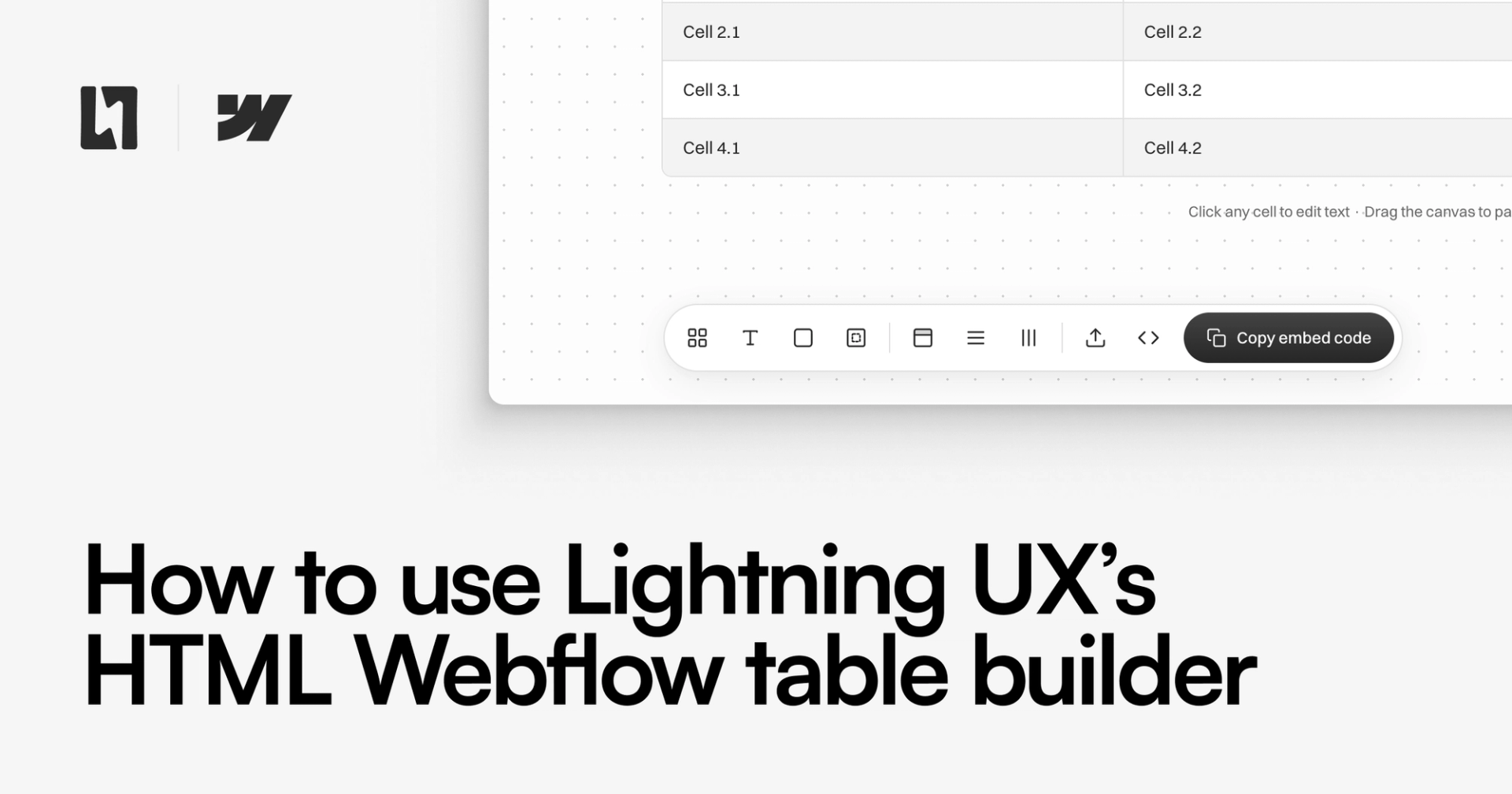
Webflow is a phenomenal tool for building visually on the web, but it doesn't have a native table element in the Designer yet, which means adding a proper data table to your site usually means writing raw HTML by hand. Our free Webflow Table Builder fixes that. It's a visual, no-code tool that lets you design a table and generate clean, embed-ready HTML in seconds.
This guide covers everything: building your table, customising it, editing the content, and embedding it into a Webflow page or Rich Text field.
1. Open the Table Builder
Head to the Lightning UX Table Builder. The tool runs entirely in your browser, no account, no install, no sign-up required. You'll see a dotted canvas in the centre with a toolbar along the bottom.
2. Set your table size
Click the Size button (the grid icon) in the toolbar. A popover will appear with a hover grid. Move your cursor across it to select the number of columns and rows you want, just like inserting a table in Google Docs. The readout below the grid updates live to show your current selection.
If you need more than 12 columns or 10 rows, scroll past the grid to the fallback inputs and type your exact values. The tool supports up to 50 columns and 100 rows.
You can also toggle whether the table includes a header row, and add an optional caption that appears above the table.
3. Edit your cell content
Click directly on any cell in the preview canvas to edit its text. The cell becomes editable inline. Type your content and press Enter (or click away) to confirm. This works for header cells and body cells alike.
There's no separate form to fill in. The preview canvas is live, so what you see is exactly what will be generated.
4. Style the table
The toolbar gives you full control over how your table looks. Here's what each control does:
Typography
Click the Typography button (the T icon) to set the font family, font size, and body text colour. If you choose Inherit from page, the table will automatically pick up the font stack from your Webflow site: useful if you want the table to match your existing typography without specifying anything manually.
Border
The Border panel lets you set border width, style (solid, dashed, or dotted), colour, and corner radius. A radius of 0 gives a sharp-cornered table; increasing it creates a card-style rounded look.
Padding
Use the Padding panel to control the space inside each cell, with separate controls for vertical and horizontal padding. More padding makes the table feel open and readable; less padding suits dense data.
Header
The Header panel controls the background colour, text colour, and whether header text is bold. The header row is always output as a proper <thead> with <th> elements, which is important for accessibility.
Rows
Click Rows to set a default row background colour, enable zebra striping (alternating row colours), and optionally override the background of specific rows: handy for highlighting particular data points.
Columns
The Columns panel lets you set text alignment (left, centre, or right) and an optional background colour per column. This is useful for pricing tables where you want to highlight a recommended tier.
5. Copy the embed code
Once you're happy with your table, click the Copy embed code button on the right side of the toolbar. The generated HTML is copied to your clipboard instantly. A toast notification will confirm it was copied successfully.
You can also click the View code button (the angle brackets icon) to see the full HTML in a panel before copying.
6. Embed the table in a Webflow page
To add your table to a static page in Webflow, you'll use an Embed element.
Open the page in the Webflow Designer. In the left panel, click the Add elements icon (the plus icon), search for Embed, and drag it onto the canvas in the position where you want the table to appear.
A code editor panel will open. Paste your copied embed code in, then click Save & Close. Your table will render immediately in the Designer exactly as it will appear on your live site.
7. Embed the table in a Rich Text field
If you want to include a table inside a blog post or CMS content, the process is slightly different because Webflow's Rich Text editor doesn't have a native table element.
The cleanest approach is to add an Embed block inside your Rich Text field. In the Rich Text editor, click the + icon that appears between content blocks, then select Embed from the list of block types. Paste your table HTML into the embed panel that appears and click save.
The table will appear inline within your content, styled exactly as you configured it in the builder.
Note: Rich Text Embeds are only available on Webflow's CMS and Business plans and above. If you're on a Starter or Basic plan, you'll need to upgrade to use this feature.
8. Re-editing a table later
If you need to update a table you've already embedded, you don't need to start from scratch. Copy the embed code from your Webflow Embed element, then open the Table Builder and click the Import button (the upload icon) in the toolbar. Paste the embed code into the Import panel and click Import & edit.
The tool will reverse-engineer your original settings: dimensions, colours, borders, padding, and all your cell content. You can pick up exactly where you left off. Once you've made your changes, copy the new embed code and replace the old one in Webflow.
Tips
Font inheritance: Setting the font to "Inherit from page" is usually the best choice for tables embedded in body content, since it means the table will always match whatever font is set on that section of your site.
Unique class prefixes: Every table generated by the tool gets a randomly generated prefix (like lux-k7xm2q). This means the table's classes will never clash with your site's existing CSS, even if you embed multiple tables on the same page.
Mobile: Tables automatically scroll horizontally on small screens. If your table is very wide, consider whether the most important columns can be placed first so they're visible without scrolling.
Accessibility: The tool always generates correct semantic HTML (<thead>, <tbody>, <th scope="col"> ). This means screen readers can properly interpret and navigate your table. This matters for WCAG 2.1 AA compliance, which many organisations are now required to meet.